Solution for Desktop Analytic Solver:
- Close Excel (save your work if you need to).
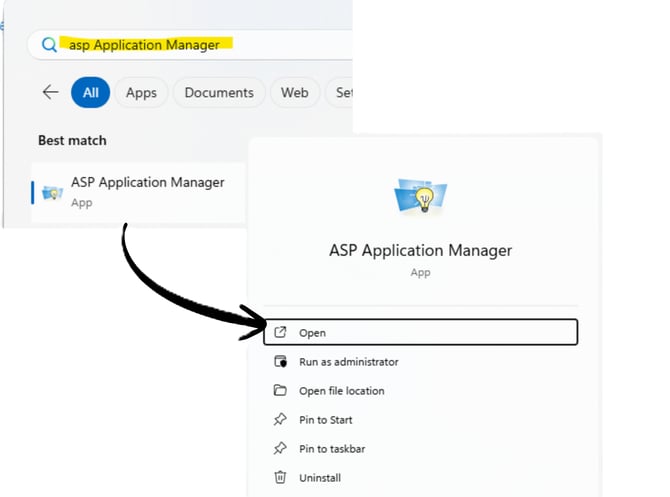
- Go to the windows icon in the lower left of your screen.

- Search for ASP Application Manager and then click "Open".
- This should open a dialog box with 3 buttons. Click Register RSP Excel Add-in. A confirmation message will display:
RSPAddin.xll registered successfully.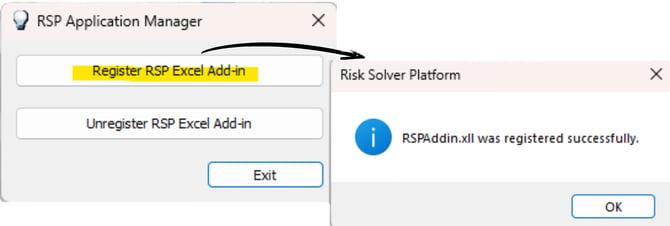
- Close the dialog box and open Excel. Your tabs should have returned.

Solution for Analytic Solver Cloud:
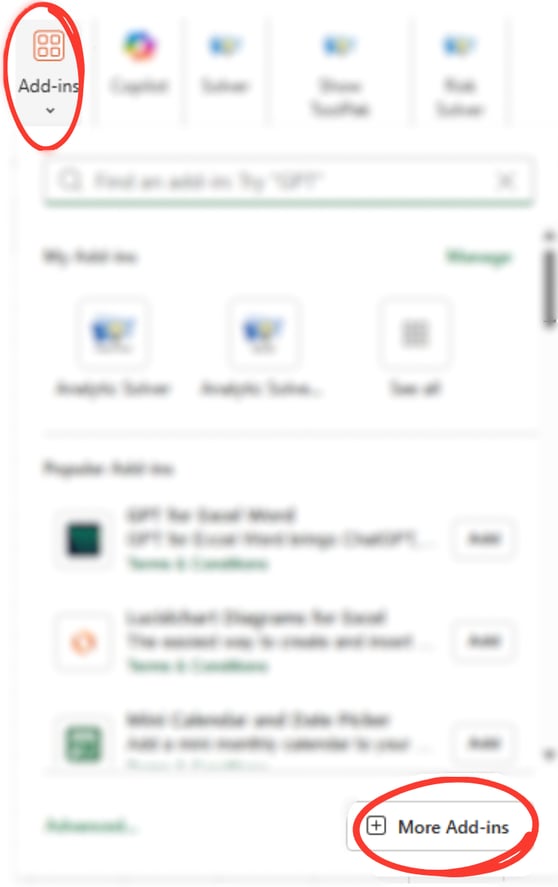
- In Excel, go to the Home tab and click the "Add-ins" button.

- Click "More Add-ins" to open the Add-in Store.
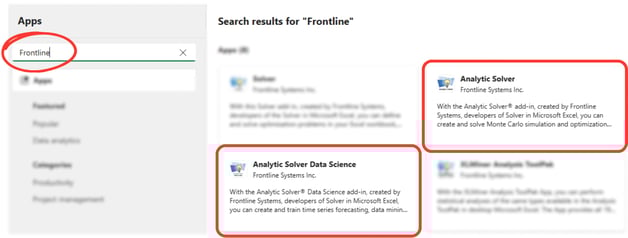
- In the Add-in Store, search for Frontline. Then add both the Analytic Solver add-in and the Data Science add-in.
Note: If you see an "Add-in store not available" message, contact your account admin to refresh the add-ins.
